Common Website Mistakes That Drive Visitors Away

Key Takeaways
Visitors are more likely to stay when a website is fast, clear, accessible, and easy to use. Small, focused improvements can make the path from arrival to action feel much simpler.
- Improve loading speed and check performance on important pages.
- Make mobile layouts, buttons, forms, and menus comfortable to use.
- Organize navigation around the questions visitors need answered.
- Use clear, specific messaging that matches what brought people to the page.
- Reduce trust concerns and unnecessary steps before a visitor gets in touch.
Slow load times that test visitors’ patience
A page that takes too long to appear can make a visitor reconsider before they have seen what a business offers. Delays are especially frustrating when someone arrives with a specific question and expects a quick answer. A few practical checks can reveal whether the problem comes from heavy page elements, shifting content, or a slow experience on a key page.
Compress images and remove unnecessary scripts
Large image files and scripts that add little value can weigh down a page. Review images at their actual display size, use appropriately compressed files, and remove scripts that no longer serve a clear purpose. The aim is not to strip a site bare; it is to keep each element useful enough to justify the time it adds.
Reduce layout shifts and delayed content
A page can feel slow even when its first elements appear quickly if text and controls jump around while the rest loads. Reserve space for images and other elements that arrive later, and avoid delaying content visitors need to understand the page. A steady first view gives people a more comfortable place to begin reading and deciding where to go next.
Track real-world performance on key pages
Check the pages people rely on most, such as the homepage, service pages, and contact page, rather than assuming the whole site behaves alike. Revisit them on different connections and devices, and look for delays that a quick test on a fast office connection might hide. If search is an important source of visitors, it may also help to consider search visibility beyond clicks, since being seen in results and earning useful visits are related but distinct concerns.
Mobile experiences that feel like an afterthought
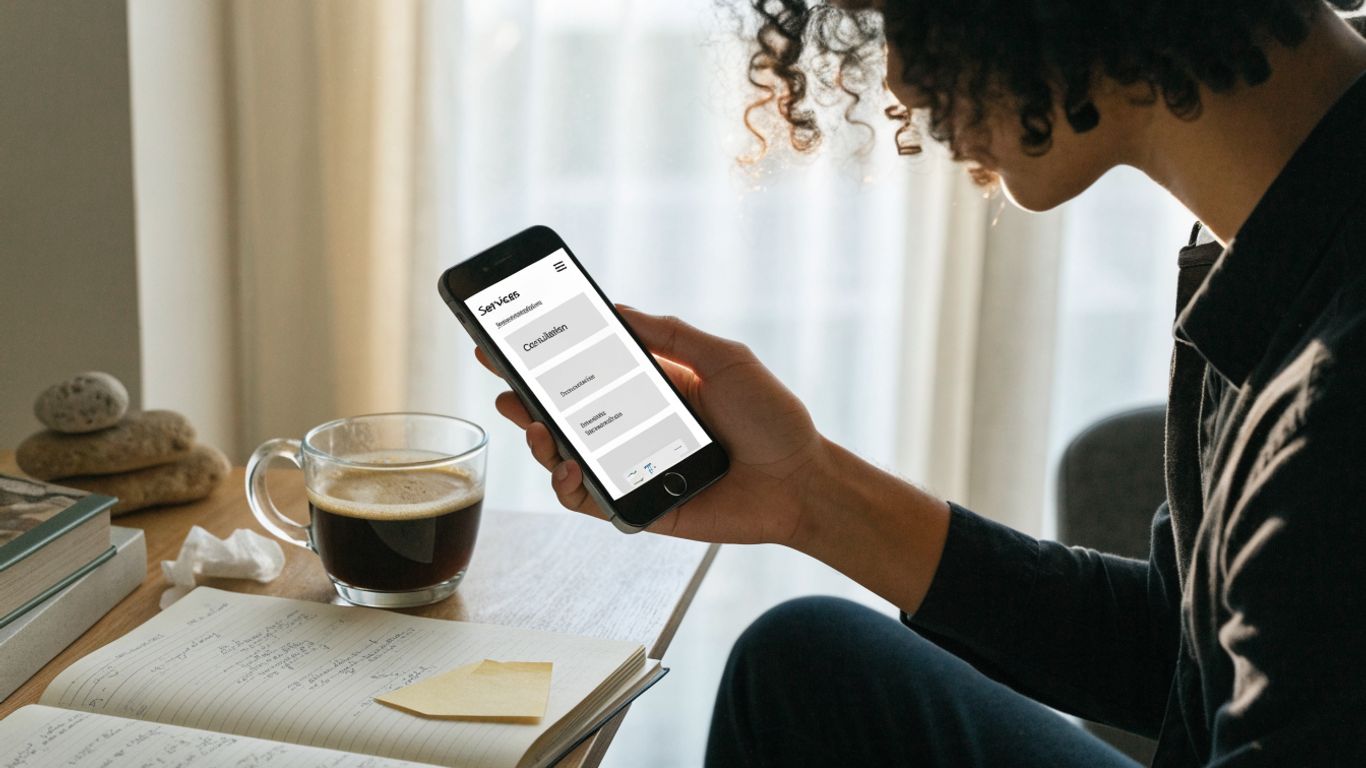
Many visitors encounter a business on a phone, often while they are doing something else. A desktop layout squeezed onto a narrow screen can make reading and acting feel like work. The mobile version should be treated as a real version of the site, not a smaller copy that gets checked only at launch.
Make layouts and text work on small screens
Check that content fits the screen without sideways scrolling and that headings, paragraphs, and images remain easy to follow. Text should be comfortable to read without repeated zooming, and important details should not disappear beneath an oversized banner. A simple layout often works better on a phone because it lets the main information stand out.
Ensure buttons and links are easy to tap
Links packed close together can be difficult to select accurately on a touchscreen. Give buttons enough room around them, use labels that make the next step clear, and make sure interactive elements look different from ordinary text. It is worth checking the page with one hand and a small screen; awkward taps become obvious quickly.
Test forms and menus on different devices
A menu that opens neatly on one phone may behave differently on another, and a form that looks fine in a browser may be tedious to complete on a touchscreen. Test the important journeys on more than one device when possible. Keep the review practical and focused on the actions a visitor needs to complete:
- Open and close the main navigation.
- Follow a link to an important page.
- Enter information into each form field.
- Submit the form and read the confirmation.
After testing, fix the points where visitors hesitate, mis-tap, or have to repeat an action. Those small repairs can make a mobile visit feel considered rather than improvised.
Navigation that makes information hard to find
Visitors should not need to understand a company’s internal structure to find a service, answer, or contact method. Navigation works best when it reflects the way people think about their needs. A short review of page names and paths can uncover places where a familiar business label is not a useful direction for a first-time visitor.
Organize pages around visitor needs
Start with the questions people bring to the site: What is offered? Who is it for? How does someone get started? Group pages in a way that answers those questions without making the menu feel crowded. When a site has several useful pages, a clear hierarchy can keep the main options visible while leaving less frequently used details one level deeper.
Use clear labels instead of internal jargon
A label that makes perfect sense to staff may leave a new visitor guessing. Prefer familiar words that describe what someone will find after clicking, and use the same terms across menus, buttons, and page headings. If a label needs a spoken explanation, it may not be doing enough work on its own.
Make important pages easy to reach
The most useful destinations should not be hidden behind a chain of unrelated clicks. Compare the routes to common tasks and remove detours where they do not help the visitor. A simple inventory can help teams spot where a page is hard to reach or where two labels seem to promise the same thing.
| Visitor need | Helpful destination | Possible navigation label |
|---|---|---|
| Understand the offer | Services overview | Services |
| Learn about the business | Company information | About |
| Ask a question | Contact options | Contact |
| See examples of work | Project gallery | Our Work |
Use labels consistently and check that the menu reflects the way visitors describe their needs. A small number of clear routes is usually easier to scan than a long list of options with overlapping meanings.
Messaging that leaves visitors unsure
A visitor should be able to tell what a business does without decoding vague slogans or searching through several pages. When the first screen is unclear, people may leave even if the business offers exactly what they need. Direct language gives visitors a reason to keep reading and helps them recognize whether they are in the right place.

Explain what the business offers right away
Put the basic offer near the top of the page, using everyday language that a prospective customer would recognize. Name the service or product and, where useful, the kind of person or problem it is meant for. US Website Builder provides web design and search engine optimization; those are concrete service descriptions, unlike a broad claim that a business simply helps people succeed.
Write scannable copy with specific benefits
Visitors often scan before they decide to read closely, so make headings and short paragraphs carry useful information. Describe outcomes in terms the business can support, and avoid promises that are difficult to explain or substantiate. A helpful page answers what is offered, why it may be useful, and what a visitor can do next.
Match landing-page content to visitor expectations
A landing page should continue the conversation that began in a search result, advertisement, or referral. If someone arrives expecting details about a particular service, they should not have to hunt through general company language to find them. This quick comparison can reveal a mismatch between what brought someone to the page and what the page actually says.
| Visitor expectation | Page should clarify | Sign of a mismatch |
|---|---|---|
| A specific service | What the service includes | Only broad company claims appear |
| A local business | Where it serves customers | Location details are difficult to find |
| A next step | How to make contact | The page offers no clear action |
Use the gaps as editing prompts, not as a reason to add more copy indiscriminately. A focused page can reassure visitors simply by answering the question that brought them there.
Trust gaps and accessibility barriers
Visitors make judgments from small details: whether information looks current, whether a form feels safe, and whether the site is comfortable to use. A polished appearance cannot compensate for missing contact details or a confusing interaction. Trust and accessibility are part of the same basic promise: people should be able to understand the site and use it with confidence.
Display current contact details and business information
Keep the business name, contact options, and other essential details consistent wherever they appear. Outdated hours or a broken contact link can raise doubts even when the service itself is sound. Review these details periodically, especially after a change in location, staffing, or the way customers are served.
Use secure forms and explain how data is handled
A form should ask only for information that is useful to the request, and visitors should be able to understand why it is being collected. Explain data handling in plain language and make sure the form is delivered through a secure connection. Clear expectations make a request feel more considered than a form that asks for personal details without context.
Check contrast, keyboard access, and image descriptions
Some barriers are easy to miss if a site is reviewed only with a mouse and a monitor set to one brightness level. Check that text is distinguishable from its background, that interactive controls can be reached with a keyboard, and that meaningful images have descriptions. These checks improve usability for people with different needs and can also make the site easier to navigate for everyone.
Conversion paths that create unnecessary friction
A visitor may be ready to ask a question or take the next step, then encounter a vague button or a form that asks too much. Each extra decision can make the action feel less worthwhile. Look at the path from the first relevant page to the completed action and remove obstacles that do not serve the visitor or the business.
Make calls to action specific and easy to spot
A button should tell visitors what will happen when they select it. Labels such as “Contact us” or “Request information” are more informative than a generic prompt, provided they accurately describe the destination. Keep the primary action visually distinct and place it near the information that helps someone decide.
Remove needless fields and steps from forms
Ask for the details needed to respond, not every detail that might eventually be useful. If a form is long, consider whether some questions can wait until a conversation begins. Make required fields clear, use helpful error messages, and tell people what happens after submission so the process has a clean finish.
Use website marketing experts to identify high-impact fixes
When several issues compete for attention, website marketing experts can help a business review its site and decide which improvements to tackle first. Look for practical priorities that connect visitor experience with the business’s goals, rather than a list of changes without context. US Website Builder offers web design and search engine optimization, and owners considering outside help can explore web design services as one possible starting point.
Conclusion
A website can lose visitors through a series of small frustrations: a slow page, an unclear label, a hard-to-read message, or an awkward form. Working through those details with the visitor’s needs in mind makes the site easier to understand and act on, one useful improvement at a time.
Take the Next Step
US Website Builder provides web design and search engine optimization for businesses looking to improve their online presence. Explore those services if you are ready to discuss your website.
Frequently Asked Questions
What website problems make visitors leave?
Slow loading, difficult mobile layouts, confusing navigation, unclear messaging, trust concerns, and cumbersome forms can all make a visit frustrating. Often, several small problems combine rather than one dramatic issue driving someone away.
How can I tell if my website is too slow?
Check important pages on different devices and connections, and notice how long it takes for the content and controls people need to appear. Testing the same pages more than once can help distinguish a temporary delay from a recurring problem.
What should a mobile-friendly website include?
It should display content without sideways scrolling, use readable text, and make links, buttons, menus, and forms comfortable to operate on a touchscreen. Testing on more than one device can reveal issues that a desktop preview will not show.
How should I organize website navigation?
Group pages around common visitor needs, choose familiar labels, and make important destinations easy to reach. Keep the main menu focused so people can scan it without having to interpret company-specific terminology.
What should the first screen of a business website explain?
It should quickly state what the business offers and help visitors understand whether the offer fits their needs. A clear next step can then guide interested people toward more detail or a way to get in touch.
How can a website build trust with visitors?
Keep business details current, explain how information submitted through forms is handled, and make the site comfortable to use. Clear, accurate content and working contact options help visitors understand who they are dealing with.
What is a good way to improve website conversion?
Review the route from the page a visitor reads to the action the business wants them to take. Make the action clear, remove unnecessary form steps, and explain what happens after someone submits a request.


Comments
Post a Comment